your boss drops a spreadsheet with 10,000 rows of sales data on your desk and asks, "Which region is performing best, and which product categories are driving the most revenue?" Without pivot tables, you're spending the next two hours writing SUMIF formulas, manually checking everything, and hoping you didn't miss a row. With pivot tables? You answer that question in about 45 seconds. That's not an exaggeration. It's genuinely that fast once you know what you're doing.
This Excel pivot tables tutorial covers everything from setting up your first table to building the kind of dynamic, interactive analysis that makes people ask "wait, how did you do that?" We'll work through a realistic sales dataset the same type you'd encounter in a real job so by the end you're not just following steps, you actually understand what's happening and why.
No prior experience needed. Let's get into it.
What Is a Pivot Table, Really?
Most tutorials define a pivot table as a "data summarization tool." That's technically correct and also completely unhelpful to someone who's never used one. Here's a better way to think about it: a pivot table is a way to ask questions about your data without writing a single formula.
You have raw data thousands of rows of transactions, sales records, survey responses, whatever. A pivot table lets you instantly reorganize and summarize that data any way you want, just by dragging fields around. Want totals by region? Drag. Want to break it down by product category? Drag. Want to see just the last quarter? Click.
A PivotTable is a powerful tool to calculate, summarize, and analyze data that lets you see comparisons, patterns, and trends in your data.
The magic and the part that confuses beginners is that pivot tables don't touch your original data. PivotTables work on a snapshot of your data, called the cache, so your actual data doesn't get altered in any way. You can reorganize, filter, and rearrange everything without worrying about breaking anything. That's worth internalizing early because it removes a lot of the fear people have about messing up their spreadsheet.
Before You Build Anything: Preparing Your Data Correctly
This is the step most tutorials skip straight past, and it's the reason a lot of pivot tables end up broken or frustrating. Garbage in, garbage out — this applies to pivot tables more than almost anything else in Excel.
Here's what clean data looks like before you start:
Rule 1: Every column needs a header. One header, in the first row.
Don't merge cells. Don't put your company name or report title in Row 1 and push your headers down to Row 3. Excel needs a single, clean header row to know what each column is. If your headers are missing or merged, your pivot table will either fail or produce nonsense.
Rule 2: No blank rows or blank columns inside your data.
A blank row in the middle of your dataset confuses Excel. It treats the blank row as the end of your data, which means everything below it gets ignored by the pivot table. Go through your data and delete any blank rows before you start.
Rule 3: Consistent data types in each column.
Data types in columns should be the same. For example, you shouldn't mix dates and text in the same column. If your "Date" column has some real dates and some cells where someone typed "N/A" or "TBD," your pivot table will treat those as text values and your date grouping features won't work.
Rule 4: Convert your data to an Excel Table first.
This one's optional but genuinely worth doing every time. Turning your data into an Excel Table will make it easier to add or remove rows and columns in your data without having to redefine the data range of the Pivot Table. When you add data to this table, all you have to do is refresh your Pivot Table to incorporate the updates.
To convert your data to a table: click anywhere inside your data range, press Ctrl + T, confirm the "My table has headers" box is checked, and click OK. Your data now has a light blue (or whichever style Excel defaults to) striped table format. That little step saves a lot of headaches later when your data grows.
The Dataset We're Using
For this tutorial, we're working with a sales dataset that looks like something you'd find in a real business — not a toy example with three rows. Imagine a spreadsheet with 2,000+ rows containing these columns:
ColumnWhat It ContainsOrder IDUnique identifier for each saleOrder DateDate the sale was placedRegionNorth, South, East, or WestSalespersonName of the rep who made the saleProduct CategoryElectronics, Furniture, or Office SuppliesProduct NameSpecific product soldUnits SoldQuantityUnit PricePrice per unitTotal RevenueUnits Sold × Unit PriceCustomer SegmentConsumer, Corporate, or Home Office.
This is the kind of dataset a junior analyst actually works with. You could download something similar from Kaggle right now (search "superstore sales dataset" it's a popular practice file that closely mirrors this structure).
How to Create Your First Pivot Table
Alright. Data is clean, it's formatted as a table. Let's build one.
Step 1: Click anywhere inside your dataset.
Step 2: Go to the Insert tab on the ribbon and click PivotTable.
Step 3: A dialog box appears. Excel automatically selects the data for you. The default location for a new pivot table is New Worksheet. Leave it on "New Worksheet" — this keeps your raw data separate from your analysis, which is good practice.
Step 4: Click OK.
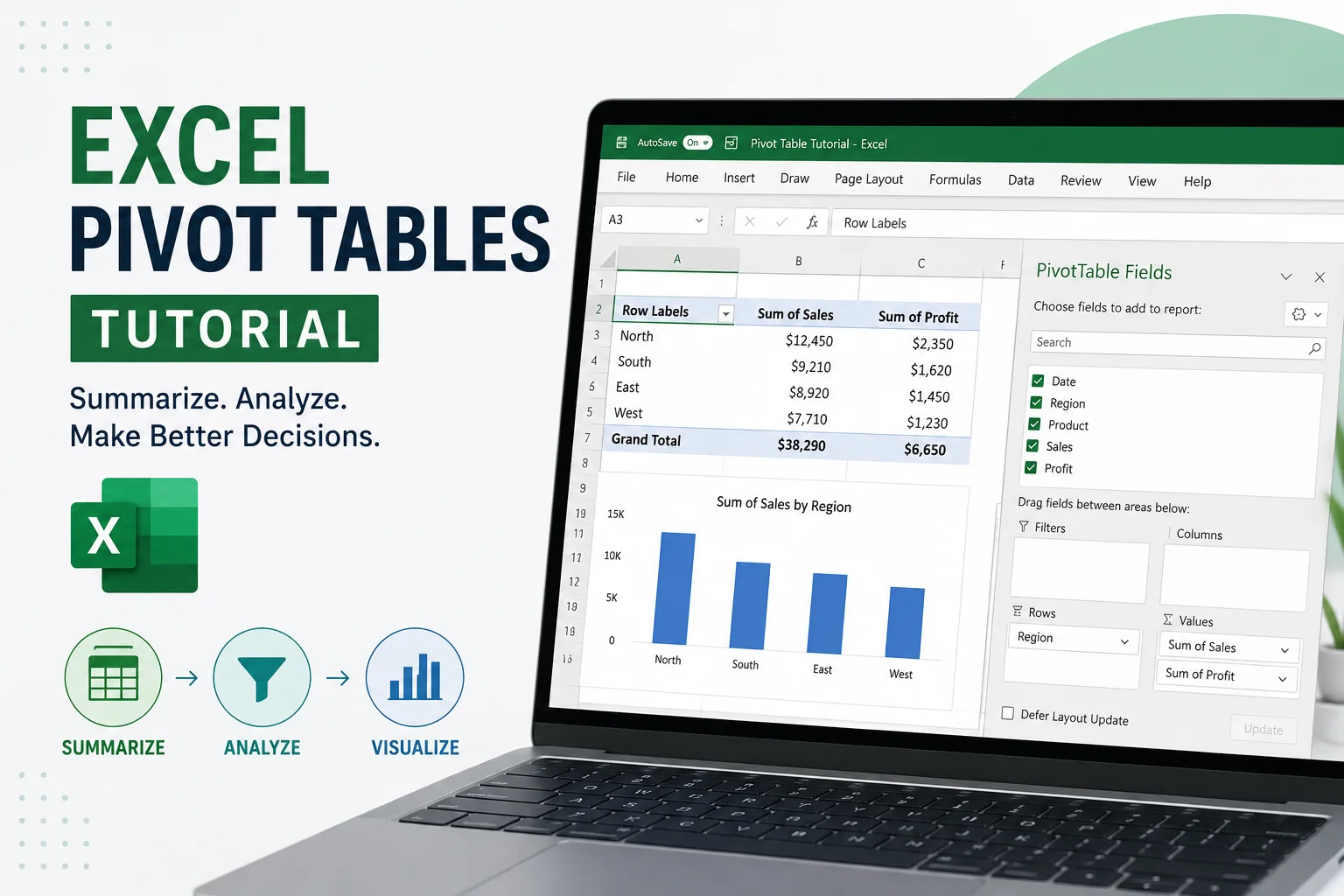
You'll land on a blank new sheet with what looks like an empty grid on the left and a "PivotTable Fields" panel on the right. The fields panel is the heart of everything. Every column in your dataset appears here as a draggable field. Your job is to drag fields into four areas:
- Rows — How to group the data (e.g., by Region, by Salesperson)
- Columns — Optional second grouping dimension (e.g., by Product Category)
- Values — What you want to measure (e.g., Sum of Revenue, Count of Orders)
- Filters — What to slice the data by without showing it in the table itself
One thing that trips up almost every beginner: don't try to plan the "right" layout before you start dragging. Just drag something. The beauty of pivot tables is that nothing is permanent — you can rearrange everything in seconds. Experiment aggressively.
Your First Analysis: Revenue by Region
Let's answer a simple but important business question: "How much revenue did each region generate?"
In the Fields panel:
- Drag Region to the Rows area
- Drag Total Revenue to the Values area
That's it. Excel instantly summarizes all 2,000+ rows and shows you something like:
Row LabelsSum of Total RevenueEast$342,580North$278,940South$401,230West$319,670Grand Total$1,342,420
In under 10 seconds you've answered a question that would have taken several SUMIF formulas to solve manually. The South leads, North trails — now you have something meaningful to discuss in a meeting.
But let's make it more useful.
Sorting Your Results
Right-click anywhere in the "Sum of Total Revenue" column and choose Sort → Sort Largest to Smallest. Now your regions are ranked by performance, not just listed alphabetically. Always sort your pivot tables — ranked lists are dramatically easier to read and communicate.
Changing What "Sum" Calculates
By default, Excel sums your numeric values. But you can change this. Right-click any number in the Values area → Value Field Settings. You'll see options including:
- Sum — adds everything up (default for numbers)
- Count — counts how many records exist (useful for counting orders, not revenue)
- Average — gives the mean value
- Max / Min — largest or smallest value in the group
For our revenue analysis, Sum makes sense. But if you wanted to know "what's the average order size per region?" you'd switch to Average. Same drag-and-drop, different question answered.
Filtering Your Pivot Table
Three main ways to filter. Each has its place.
The Basic Filter Dropdown
At the top of the Fields panel, there's a Filters area. Drag any field there (say, Customer Segment) and a dropdown filter appears above your pivot table. Click it, choose "Corporate," and your entire table now shows only Corporate customer data. Simple, effective.
Value Filters (The Underused One)
Here's one most beginners never discover. Click the dropdown arrow next to "Row Labels" in your pivot table → Value Filters → Greater Than. Set it to 100,000. Now your pivot table only shows regions (or whatever's in your Rows) with revenue above $100,000.
This is incredibly useful for "Top N" analysis. Change it to Top 10 filter and you can instantly see your 10 highest-performing salespeople, your top 5 products, or your leading customers. Same data, completely different view, zero formula writing.
Slicers, The Feature That Changes Everything
If you've ever seen those clickable filter buttons floating next to an Excel dashboard and wondered how they work, that's slicers.
Slicers provide a convenient way to interactively filter your pivot table data, making it easier to analyze and visually present your insights. You can select multiple countries simultaneously as filters.
To add a slicer: click anywhere in your pivot table → PivotTable Analyze tab → Insert Slicer → check the fields you want (try Region and Product Category) → click OK.
Two floating panels appear next to your table. Click "South" in the Region slicer and your table instantly filters to South only. Click "Electronics" in the Product Category slicer and now you're looking at South + Electronics only. Click multiple items by holding Ctrl while clicking.
Here's the really powerful part: you can connect your slicers to any number of pivot tables. This means you can control many pivot tables or pivot charts from one single slicer or timeline. This is great for creating interactive dashboards. To do this, right-click the slicer → Report Connections → check every pivot table you want the slicer to control.
One slicer. Multiple pivot tables. All updating simultaneously when you click. That's how basic Excel dashboards are built.
Grouping Data: The Date Grouping Trick
If your dataset has dates and most real business data does this feature is one of the best time-savers in Excel.
Let's say you've dragged Order Date to the Rows area. By default, Excel shows every individual date as a separate row. 2,000 rows of individual dates is completely useless for analysis. You want to see monthly or quarterly trends.
Right-click any date in the Row area → Group → A dialog box appears where you can choose to group by Days, Months, Quarters, and/or Years. PivotTables can automatically group date and time data into intervals (e.g., months, quarters, years). This simplifies time-based analysis and provides a clearer view of trends over time.
Select Months and Years together (hold Ctrl to select both) and click OK. Now your thousands of individual date rows collapse into a clean Year → Month hierarchy. Click the + next to 2024 to expand it and see 2024's months. Click the - to collapse it back. Excel builds this drill-down structure automatically.
This is how "revenue by month" or "quarterly performance" reports get built in two minutes instead of twenty.
Timeline Slicers for Dates
If slicers are powerful for categorical data, Timeline slicers are their date-specific equivalent — and they look impressive.
Timelines are exactly like Slicers, but only for use with date fields. They allow you to filter on dates with a visual timeline slider bar. You can now filter your data on any range of dates from your Timeline. Select to filter by Days, Months, Quarters or Years. Drag the end of the timeline to adjust the filtered range.
To insert one: PivotTable Analyze → Insert Timeline → select your date field → OK. A horizontal bar appears showing your date range. Drag to select Q3 2024 and your entire pivot table filters to Q3 2024 only. Drag to expand to Q3–Q4 and the table updates immediately.
These are pure interactive magic when you're presenting data to non-technical stakeholders. No formulas. No explanations. Just click and drag.
Calculated Fields: Your Own Formulas Inside a Pivot Table
This is where pivot tables go from useful to genuinely powerful for data analysis.
A calculated field lets you create a new column inside your pivot table that performs a calculation using other fields in the pivot — without adding any columns to your raw data.
Calculated fields enable you to perform calculations on the fly inside the PivotTable. As you make changes to the PivotTable, the calculated field automatically recalculates, and this not only gives you greater flexibility, it's also more efficient for Excel to calculate and results in a smaller file size.
"Show Values As" — The Hidden Analysis Tool
Most people discover the "Sum of / Count of" calculation options. Very few find the Show Values As options, which live right next to them. This is one of the most underused features in pivot tables.
Right-click any value in your pivot table → Show Values As. You'll see options including:
% of Grand Total — Instead of raw numbers, shows each cell as a percentage of the overall total. Perfect for "what share of total revenue does each region represent?"
% of Column Total — Shows each cell as a percentage of its column. Useful for "what % of Electronics revenue comes from each region?"
% of Row Total — Shows each cell as a percentage of its row. Great for "what % of each region's revenue is Electronics vs. Furniture vs. Office Supplies?"
Difference From — Shows how each value compares to a reference point. Set the reference to "Previous" and a date field, and you get month-over-month change in absolute dollars.
% Difference From — Same idea but percentage change. Set to the previous month and you instantly have a month-over-month growth rate for every group in your pivot table.
You can show month-over-month differences using "Show Values As" with Difference From Previous. This single feature eliminates an enormous amount of formula work for trend analysis. No LAG calculations, no helper columns — just right-click and choose.
Real Analysis Walkthrough: Answering Five Business Questions
Theory is useful. Practice is better. Let's walk through five realistic business questions and exactly how you'd use pivot tables to answer each one.
Question 1: "Who are our top 10 salespeople by revenue?"
- New pivot table → drag Salesperson to Rows, Total Revenue to Values
- Right-click in the Revenue column → Sort Largest to Smallest
- Click the Row Labels dropdown → Value Filters → Top 10
- Set to "Top 10 Items by Sum of Total Revenue"
Result: your ranked list of top performers in under a minute. The insight is immediate — you can see whether your top performers are clustered (suggesting a strong team) or whether one or two people dominate (which might indicate a pipeline risk if they leave).
Question 2: "How has monthly revenue trended over the past year?"
- New pivot table → drag Order Date to Rows, Total Revenue to Values
- Right-click a date → Group → select Months and Years
- Sort by date (should default to chronological)
- Right-click the Revenue values → Show Values As → % Difference From → Previous
Now you see month-over-month growth rates directly in the pivot table — which months accelerated, which ones declined. Add a pivot chart (Insert → PivotChart while inside the pivot table) and you have a trend line that updates automatically.
Question 3: "Which product categories perform best in each customer segment?"
- New pivot table → drag Customer Segment to Rows, Product Category to Columns, Total Revenue to Values
- Right-click Values → Show Values As → % of Row Total
Now each row shows how a customer segment's revenue splits across product categories. If Corporate customers spend 65% on Electronics but Consumer customers spend only 30%, that's a segmentation insight worth surfacing. Your marketing team needs to know this.
Question 4: "Are there regional differences in average order size?"
- New pivot table → drag Region to Rows, Total Revenue to Values
- Right-click Values → Value Field Settings → change from Sum to Average
- Add a second copy of Total Revenue to Values → change this one to Count
- Rename them "Avg Order Value" and "Number of Orders"
Now you can see whether East region has higher average order values than West (suggesting different customer quality or product mix) or similar averages with different volume. These two different numbers tell very different stories about regional performance.
Question 5: "Which salesperson-region combinations are underperforming?"
- New pivot table → drag Region to Columns, Salesperson to Rows, Total Revenue to Values
- Add a slicer for Product Category
- Sort rows by Grand Total (right-click the Grand Total column → Sort Largest to Smallest)
- Use conditional formatting on the value cells: Home → Conditional Formatting → Color Scales
Now you have a heat map-style view of your sales matrix. The green cells are strong performers, red cells show where there's a gap. Click the Product Category slicer to see whether underperformance is across-the-board or specific to certain product types. You've just built the foundation of a sales performance review.
Common Mistakes to Avoid
These are the things that trip up beginners (and honestly some experienced users too):
Forgetting to refresh. If you update your source data, the pivot table doesn't update automatically. You have to refresh it: right-click anywhere in the pivot table → Refresh. Or press Alt + F5. If you forget this step, you're presenting outdated data. Make it a habit.
Blank rows in source data. One blank row inside your dataset and Excel treats everything below it as outside the data range. Always check for blanks before building.
Overcomplicating the layout. Beginners often try to put too many fields in too many areas at once. Start with one question, one pivot table. Build complexity gradually. A cluttered pivot table communicates nothing.
Not using Table format. Every time you add new data and don't refresh, or add rows and find they're not included, it's because your source data isn't formatted as a proper Excel Table. Convert it first (Ctrl + T) and this problem largely disappears.
Treating the grand total as gospel. If you have filters active on your pivot table, the Grand Total only reflects the filtered data. It won't tell you "% of all data" — it tells you "% of what's currently visible." Know which mode you're in.
Pivot Charts: Turning Your Table Into a Visual
Numbers in a table answer questions. Charts make those answers obvious to everyone in the room.
Adding a pivot chart is simple: click inside your pivot table → Insert tab → PivotChart → pick a chart type → OK. The chart appears and links directly to your pivot table. When you filter the table, the chart updates. When you rearrange the table, the chart rearranges.
Which chart type to choose:
- Bar or Column chart — for comparing categories (revenue by region, sales by salesperson)
- Line chart — for showing trends over time (monthly revenue, weekly traffic)
- Pie chart — use sparingly and only when you have fewer than 5-6 categories and the "part of whole" relationship is genuinely the insight
- Combo chart — bar for one metric (revenue) and line for another (margin %) on the same chart
One quick cleanup tip that makes pivot charts look much more professional: remove all the buttons on a PivotChart to free up valuable chart real estate. Any filtering needed can be done from the linked pivot table instead of from the chart. Right-click on any of the buttons on the chart and select Hide All Field Buttons on Chart. Those little filter buttons Excel adds by default clutter the chart and confuse stakeholders. Hide them.
Building a Simple Dashboard With Multiple Pivot Tables
This is the capstone. One slicer controlling multiple pivot tables and charts — a simple but genuinely functional interactive dashboard.
Step 1: Create three pivot tables from the same data source:
- Table A: Revenue by Region (bar chart)
- Table B: Monthly Revenue Trend (line chart)
- Table C: Top 10 Salespeople by Revenue (bar chart)
Step 2: Position them on a single sheet, arranged so they don't overlap.
Step 3: Insert one slicer for Product Category from any of the three tables.
Step 4: Right-click the slicer → Report Connections → check all three pivot tables.
Now when you click "Electronics" in the slicer, all three tables and all three charts update simultaneously to show Electronics-only data. Click "Furniture" — everything switches. That's an interactive dashboard built entirely from pivot tables, no Power BI required.
For data analysts presenting findings to non-technical teams, this is a game-changer. People who would glaze over looking at a table of numbers will lean forward and start asking "what if we filter by just Corporate customers?" when they see an interactive dashboard they can click.
When Pivot Tables Aren't Enough
Pivot tables are extraordinary. They're also not the right tool for every situation. It's worth knowing the boundaries.
If you need to write complex conditional logic (like "if a customer's first order was Electronics, classify them as a tech buyer"), pivot tables can't do that. Add a helper column to your source data using an IF formula.
If you're working with data from multiple unrelated tables with complex relationships, standard pivot tables get messy. This is where Power Pivot — Excel's built-in data modeling engine — comes in. It handles multiple related tables and uses a formula language called DAX for advanced calculations. Power Pivot is the natural next step after you're comfortable with standard pivot tables.
For fully dynamic and advanced PivotTable calculations, consider using Power Pivot with DAX, which offers far greater control and capability.
And if your data has hundreds of thousands of rows or you need to connect to live databases, SQL or Power BI become more appropriate tools. Pivot tables are Excel-based and work best with data that fits comfortably in a spreadsheet.
Practice Exercises to Build Real Skill
Reading a tutorial is one thing. Actually building a pivot table from scratch is another. Here are five exercises to work through with the Superstore dataset (free on Kaggle — search "Sample Superstore" and download the Excel version):
Exercise 1 — Basic Aggregation: Create a pivot table showing total sales by Category and Sub-Category. Sort by sales descending. Which sub-category has the lowest sales?
Exercise 2 — Two-Dimensional Analysis: Add Region to Columns. Now which sub-category performs best in each region? Do you see any regional patterns?
Exercise 3 — Time Analysis: Create a new pivot table showing monthly sales over time. Group by Months and Years. Add a line pivot chart. What seasonal patterns can you spot?
Exercise 4 — Calculated Field: Add a profit margin calculated field (Profit ÷ Sales). Which product categories have the highest and lowest margins?
Exercise 5 — Dashboard: Build a three-panel dashboard with a bar chart (sales by region), a line chart (monthly sales trend), and a table (top 10 customers by sales). Connect all three with a single Category slicer.
Complete these five exercises and you'll have covered 90% of what pivot tables are actually used for in real analyst jobs. That's not an overstatement — most of the pivot table work in business settings is some combination of these patterns.
What to Learn After Pivot Tables
If you've worked through this tutorial, you're in a genuinely strong position. Here's what to tackle next in a logical order:
VLOOKUP / XLOOKUP: For combining data from different tables before it hits your pivot table. XLOOKUP is the modern version and handles more edge cases cleanly.
Power Query: Excel's built-in data transformation tool. It lets you clean, reshape, and combine data before you analyze it, and it automates that cleanup so you don't have to repeat it every time new data comes in. If pivot tables are your analysis layer, Power Query is your data preparation layer.
Power Pivot and DAX: The natural next step after standard pivot tables. Handles multiple related tables and unlocks calculations that pivot tables can't do natively.
Conditional Formatting: Makes your pivot tables and data self-communicating through color coding. Heat maps, data bars, and icon sets all live here.
The sequence matters. Don't jump to Power Pivot before you're genuinely comfortable with standard pivot tables. The concepts build on each other.
Final Thoughts
Pivot tables are the single most impactful Excel skill you can learn for data analysis. Nothing else in Excel gives you this much analytical power with this little effort once you're comfortable with the mechanics.
But here's the real thing to remember: the technical steps in this tutorial took you maybe 30 minutes to read. Genuine comfort with pivot tables comes from building them, breaking them, fixing them, and using them on data you actually care about.
So don't close this guide and move on to the next tutorial. Open Excel. Find a dataset — the Superstore data from Kaggle is perfect. And build every example in this article from scratch.
Related articles
https://artificialintelligenceherald.com/data-analytics/what-is-data-analytics
Sources
Microsoft Official PivotTable Documentation
Excel Easy — Pivot Tables Guide
How To Excel — 101 Pivot Table Tips
XelPlus — Advanced Pivot Tables
Sample Superstore Dataset — Kaggle
Related: Why Are You Still Doing That Manually? A Real Guide to AI Automation